The Loan feature can be used to track a loan made to an Individual or Employee.
To Setup the Loan, follow the steps below:
To Setup the Loan, follow the steps below:
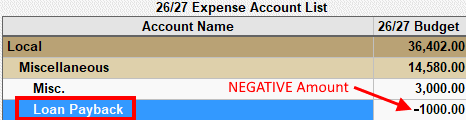
- Create a New Expense Account that will be used when payments are made.
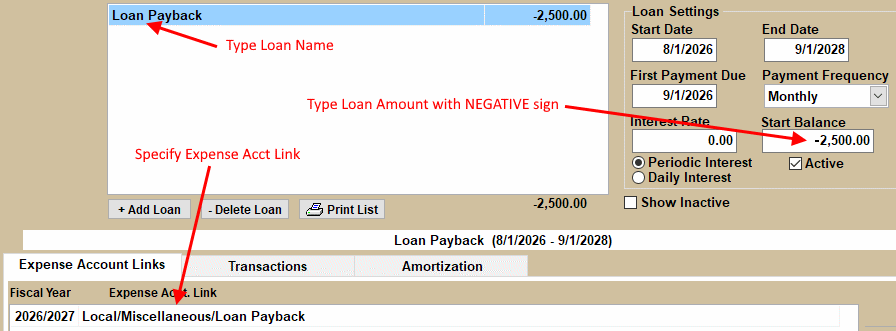
Specify the BUDGET as the NEGATIVE amount to be paid this Fiscal Year. ie. -1000.00 - Create a New Loan.
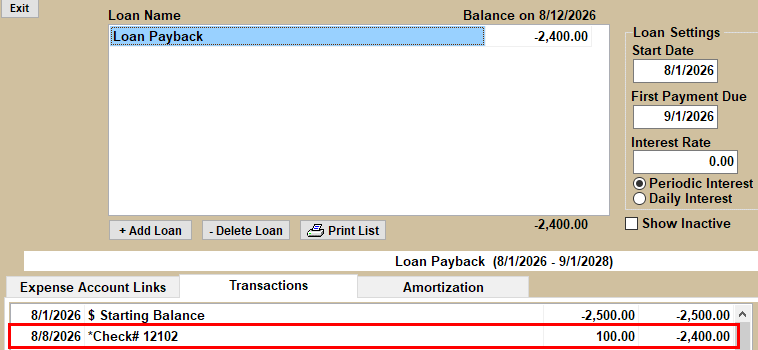
- Enter the Start Balance as a NEGATIVE value ie. -2500.00
- Link the New Expense Acct created above.
If payments will be made with Payroll deductions, then do the following:
- Add a NEW Deduction/Benefit to Payroll. ie. Loan Payback
- Exit the Deduction/Benefit Setup screen
- Click the Employee Name on the Payroll Setup screen
- Click the Deductions/Benefits tab
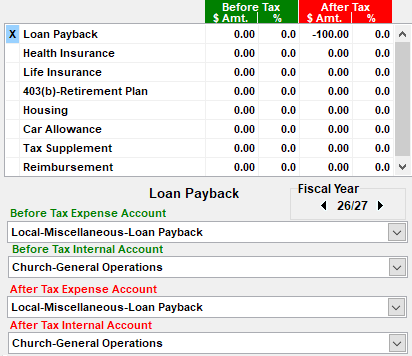
- Double-Click in the BLANK column to the left of the new Deduction Name. ie. Loan Payback
- Specify the Amount to be repaid on each Check as a NEGATIVE value ie. -100.00 as an AFTER-TAX Deduction
- Select the newly created EXPENSE ACCT in the After-Tax Expense Acct link box below the list
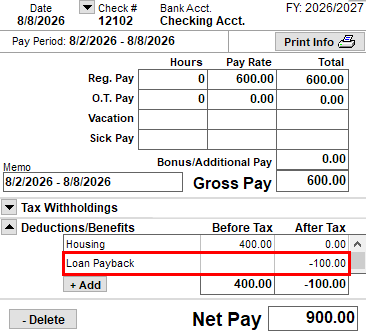
- When Posting Checks, you will see the AFTER-TAX Deduction which will decrease the NET PAY.
- This payment will be automatically applied to the Loan balance.
- Post an EXPENSE CREDIT Deposit when the payment is received using the newly created Expense Acct (ie. Loan Payback).
- Create a Contribution FUND (ie. Loan Payback) and Un-Select the Tax Deductible column. The INCOME EXEMPT column will automatically be selected.
- Post the Donation Entry using the new FUND.
- Post the Deposit, making sure to Double-click the EC column on the Loan Payback row.
If payments are made directly to the church,(not with Payroll) then do the following:

If payments are made through Contributions, then do the following: